

Mobile Apps
iOS
Apple App Store

Android
Google Play Store

Download & install the desktop app
Windows
Download the 64-bit EXE installer and double-click it. Follow the setup steps to install the openITCOCKPIT Desktop App.
macOS
Download the DMG for your Mac, open it and drag the openITCOCKPIT Desktop App into Applications.
Generic Linux
AppImage (64-bit)
Make the downloaded AppImage executable, then run it:
chmod +x openITCOCKPIT-Desktop_*_x86_64.AppImage
./openITCOCKPIT-Desktop_*_x86_64.AppImage
Ubuntu / Debian
Download the 64-bit DEB package and install it from the download directory:
sudo apt-get install ./openITCOCKPIT-Desktop_*_amd64.deb
Red Hat / CentOS
Download the 64-bit RPM package and install it from the download directory:
sudo dnf install ./openITCOCKPIT-Desktop_*_x86_64.rpm
Arch Linux
Download the 64-bit pacman package and install it from the download directory:
sudo pacman -U openITCOCKPIT-Desktop_*_x64.pacman
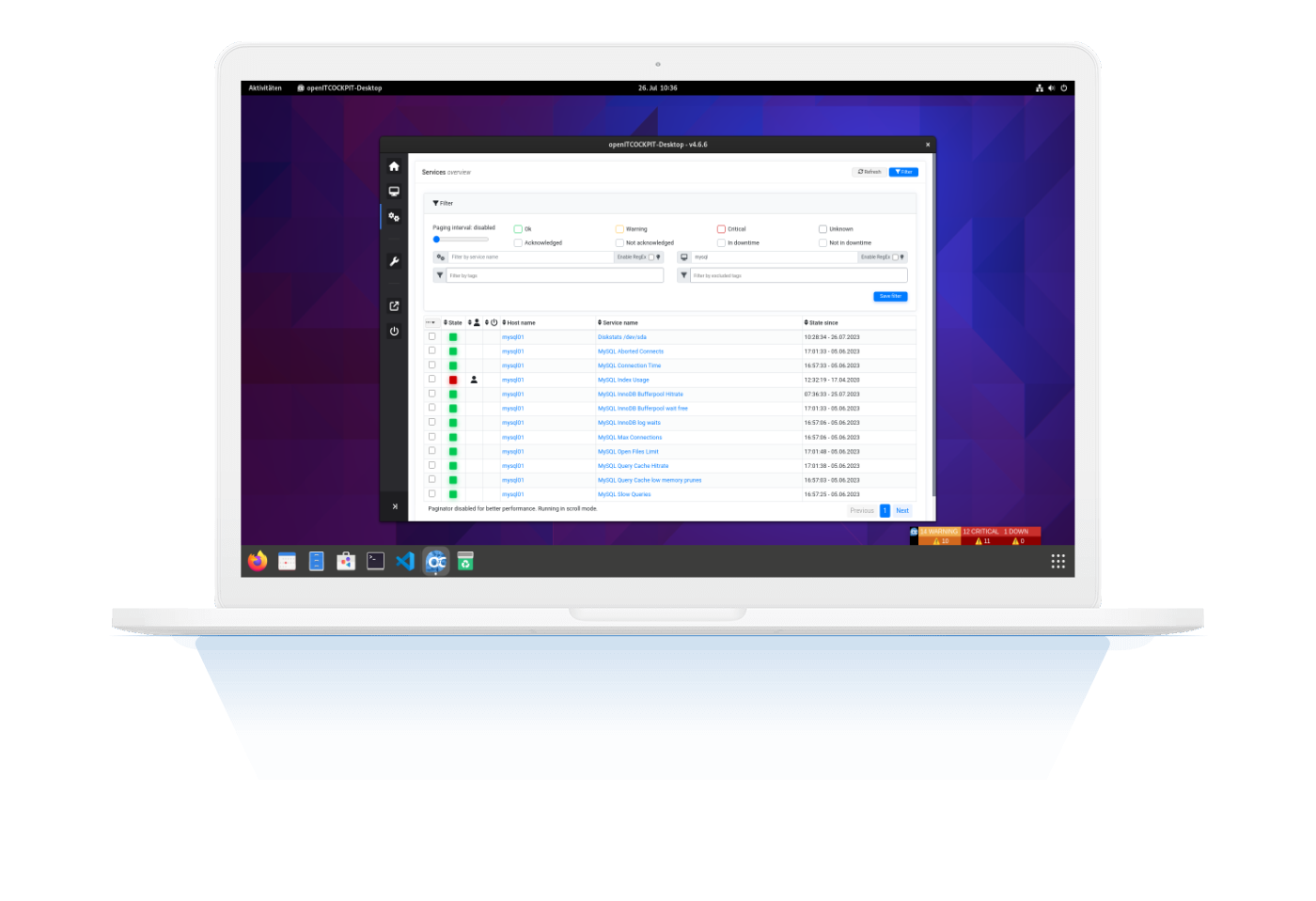
The openITCOCKPIT desktop app will suit in perfectly into your existing openITCOCKPIT ecosystem. It runs on every modern operating system and will help you to keep track of current monitoring events and status updates. The app uses the openITCOCKPIT HTTP API to communicate with the openITCOCKPIT Server.
The openITCOCKPIT Desktop App can run in the background (tray icon) and receive push notifications to notify you about current state changes.
To acknowledge a particular host or service state you can right click on the object, use the provided mass change methods or use the customized hosts and services browser. To get more information read our Desktop App blog post. Desktop App can run in the background (tray icon) and receive push notifications to notify you about current state changes.